The purpose of uploading a file to the public area of ARC is to permit the sharing of a file with out the need of a user being authenticated into ARC.
Example of the reason is when sending an email communication to the network and including a link to an announcement. Those who receive the email can click the link and be able to view without accessing ARC.
1. Select Campus |
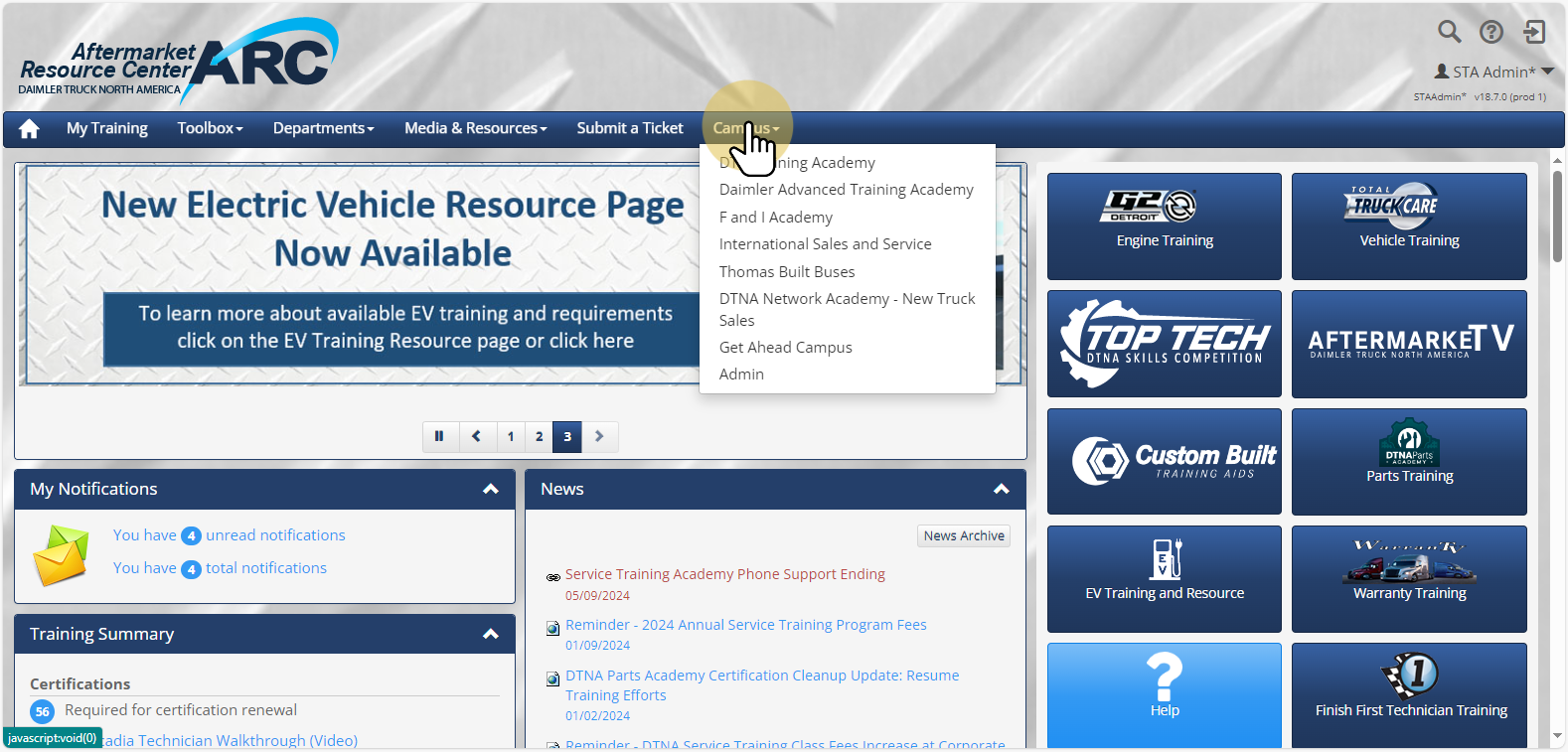
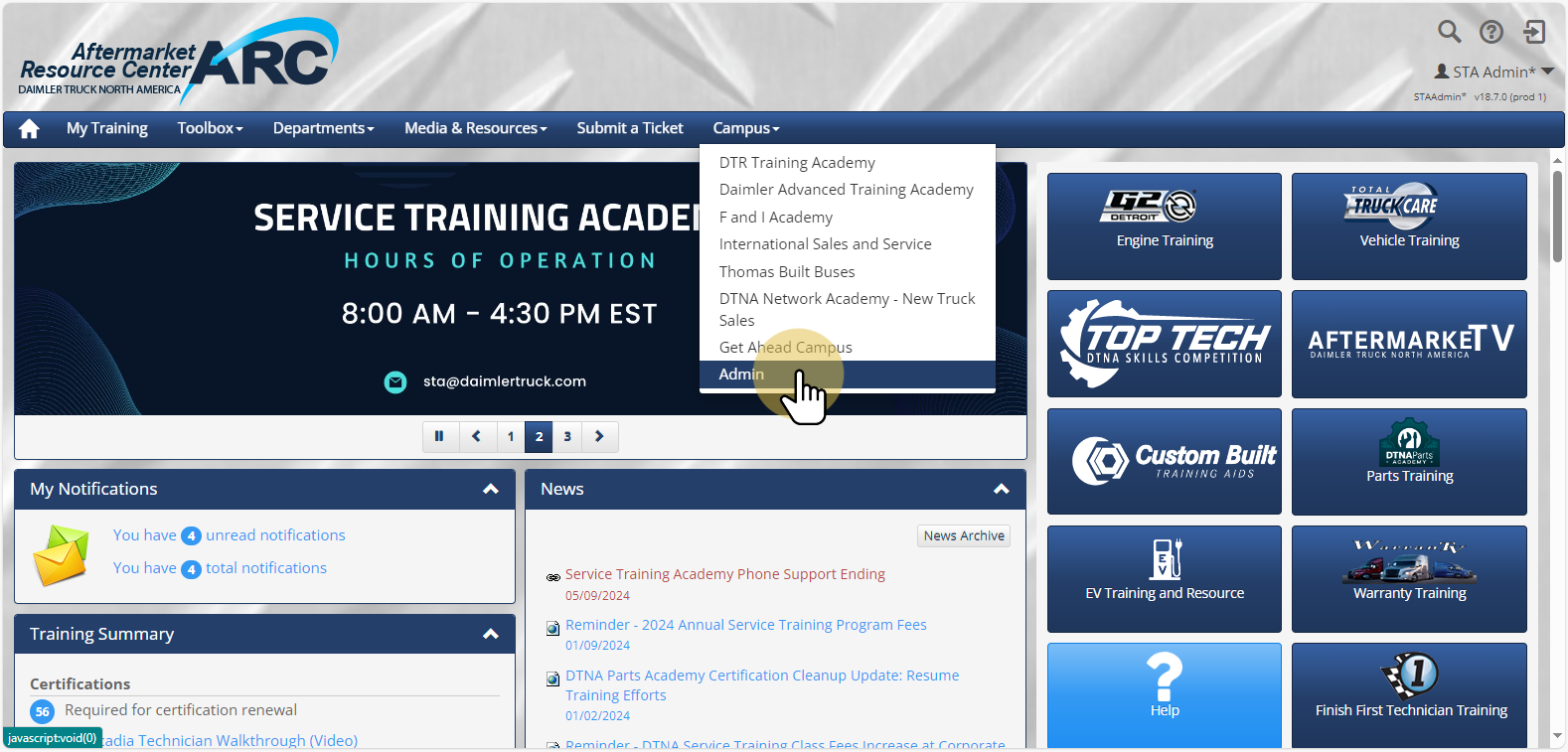
2. Select Admin |
Select "Admin" to access the administrative console.
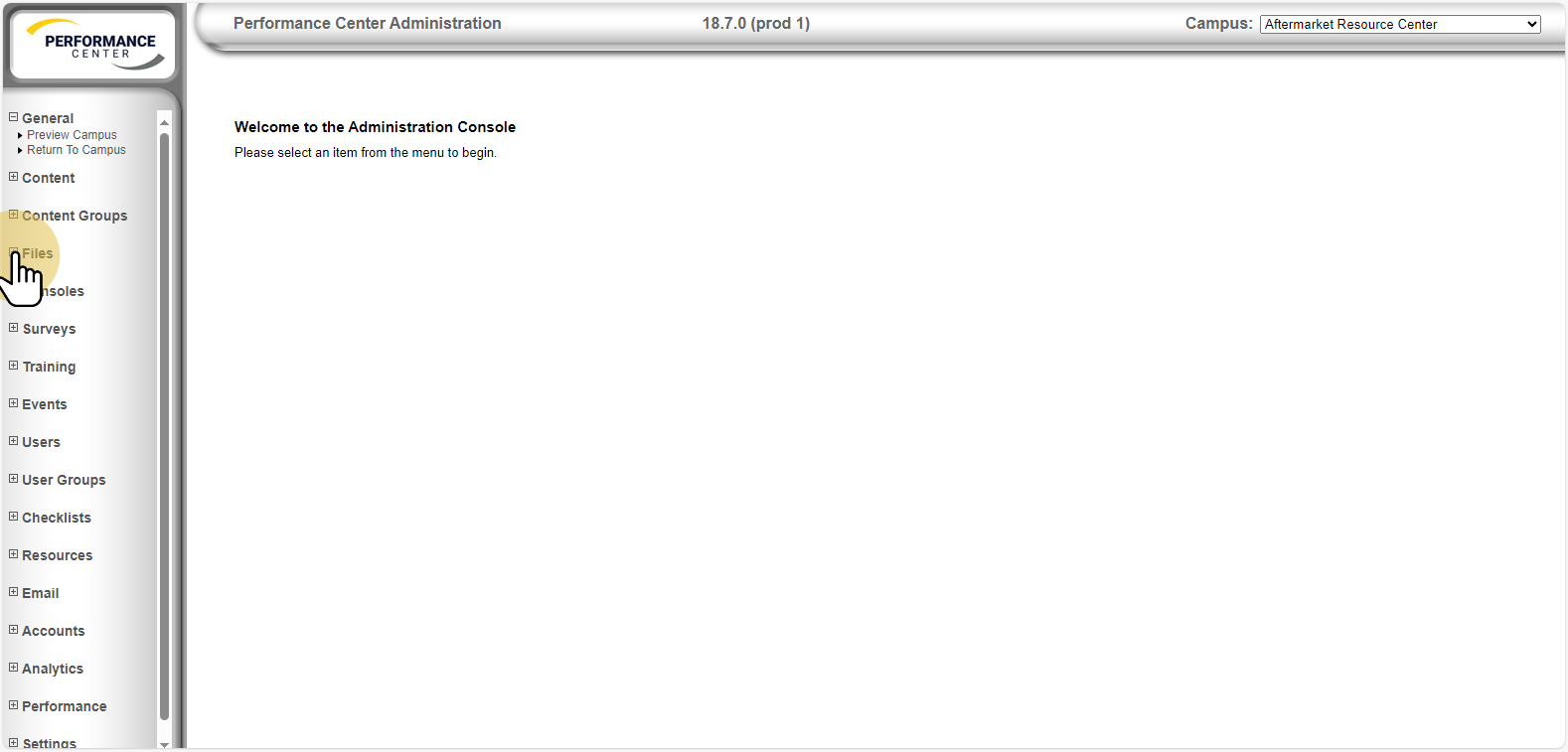
3. Click Files |
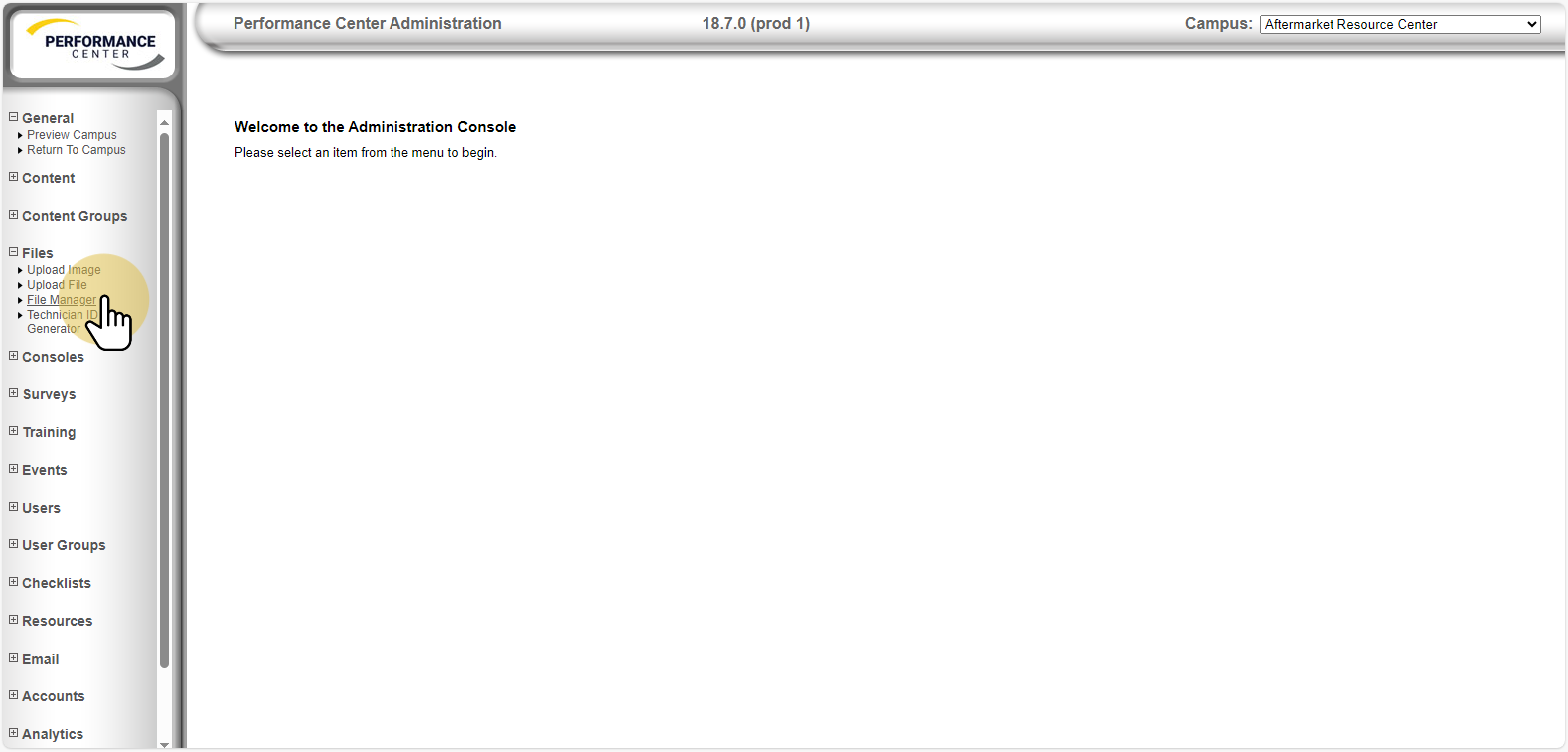
4. Click File Manager |
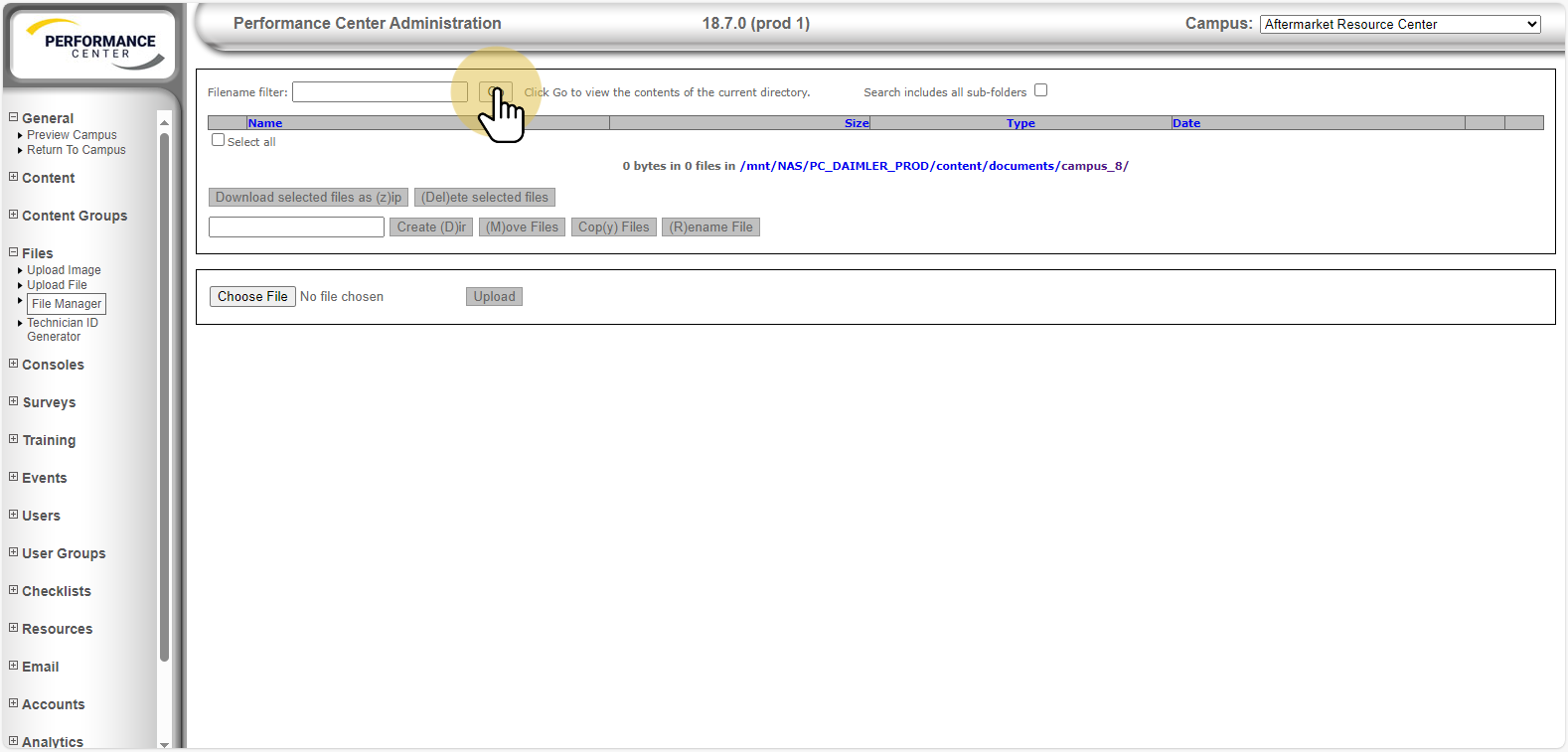
5. Click Go |
Clicking displays contents of the current directory.
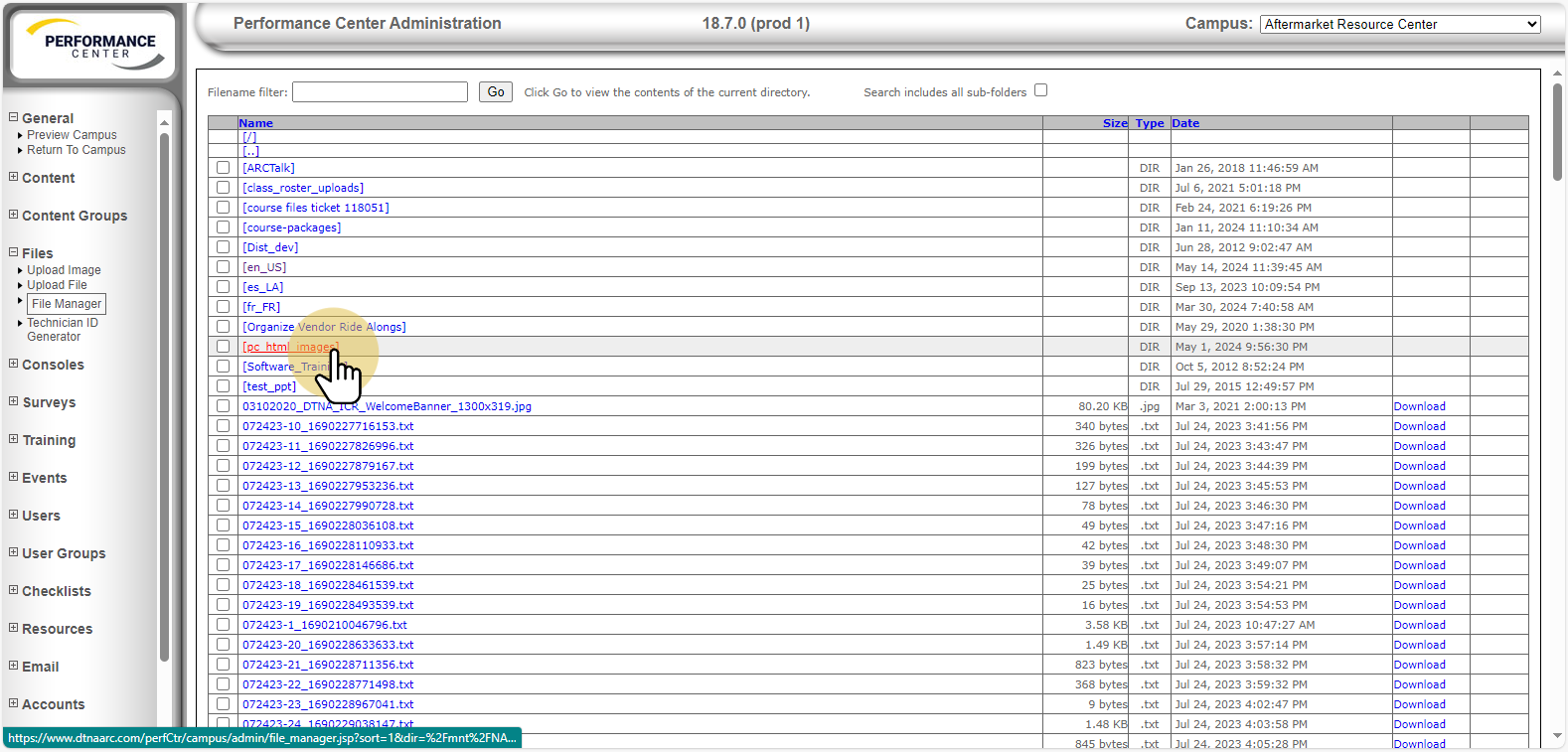
6. Click pc_html_images |
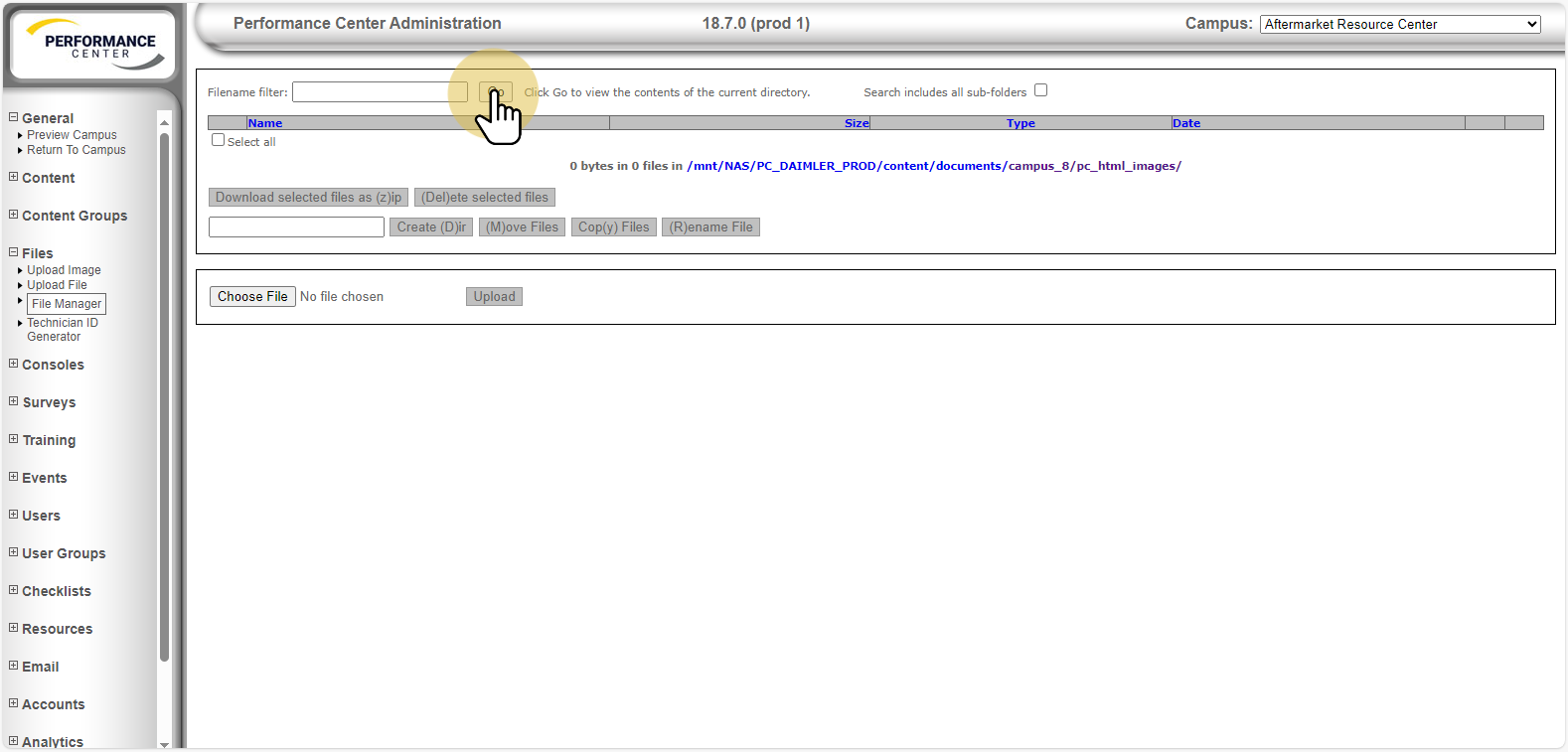
7. Click Go |
Clicking displays contents of the current directory.
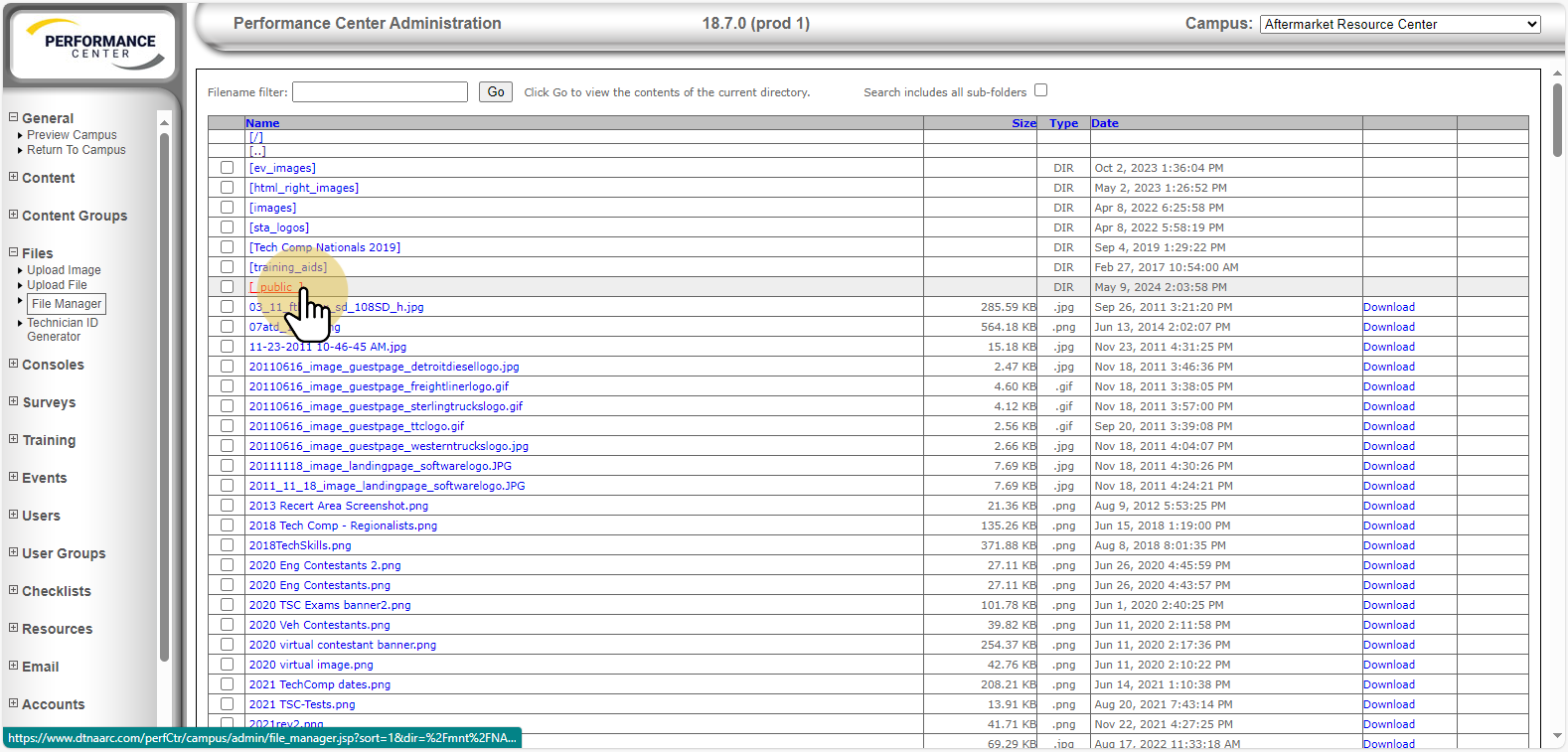
8. Click _public_ |
The "_public_" directory does not require a user to be logged into ARC to view files with in the "_public_" directory structure.
9. Click Go |
Clicking displays contents of the current directory.
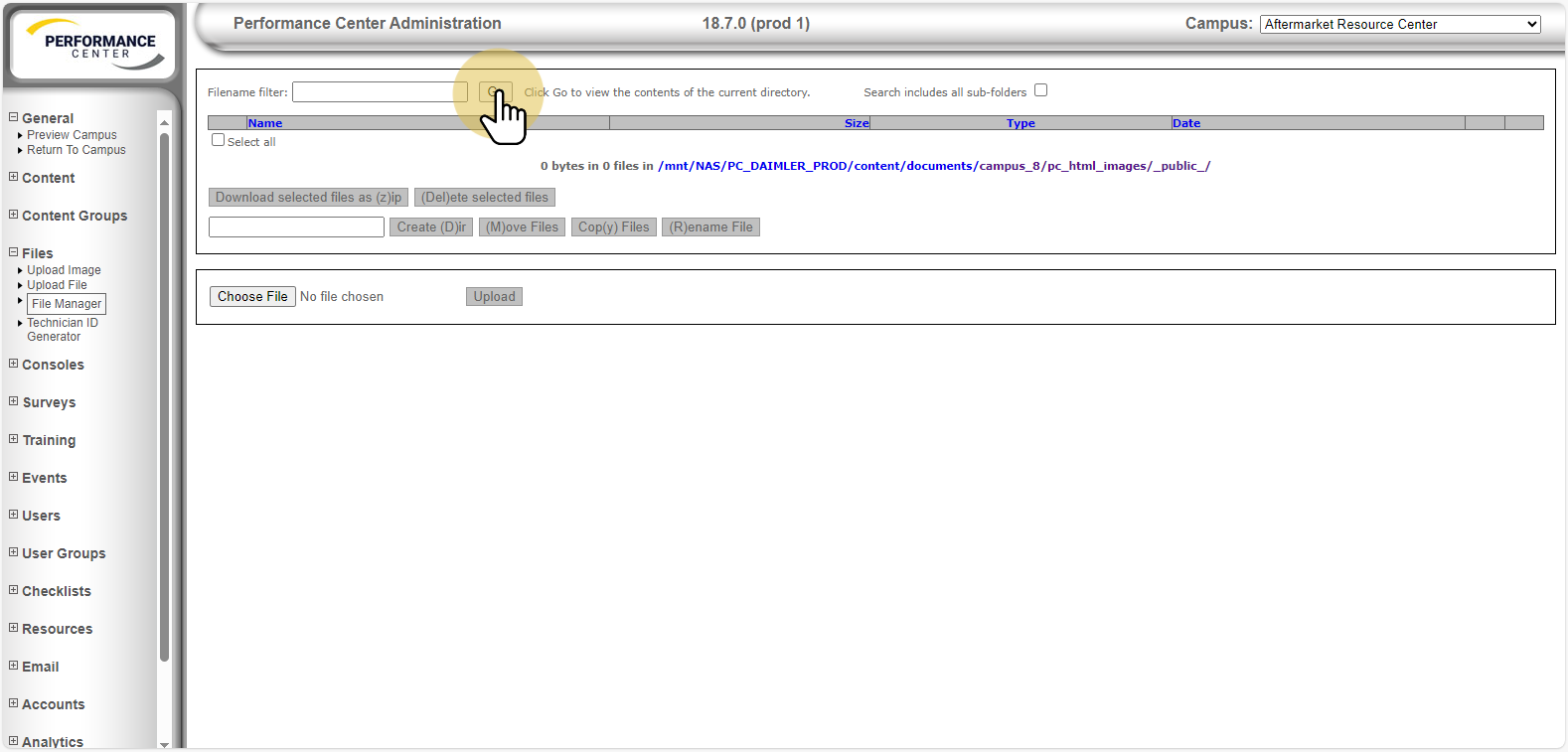
10. Click arc-public |
The "arc-public" directory is used to store all publicly shared ARC announcements.
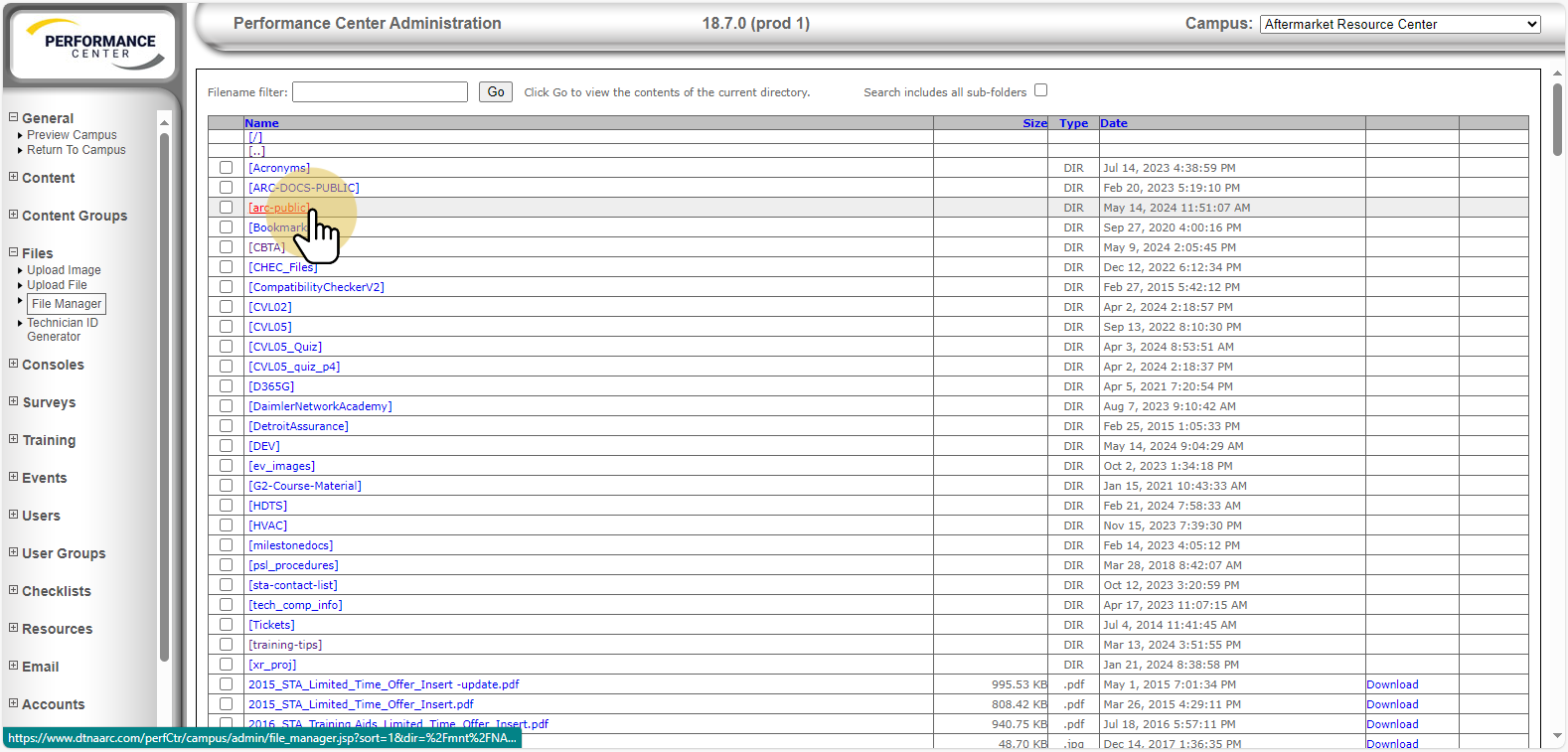
11. Click Go |
Clicking displays contents of the current directory.
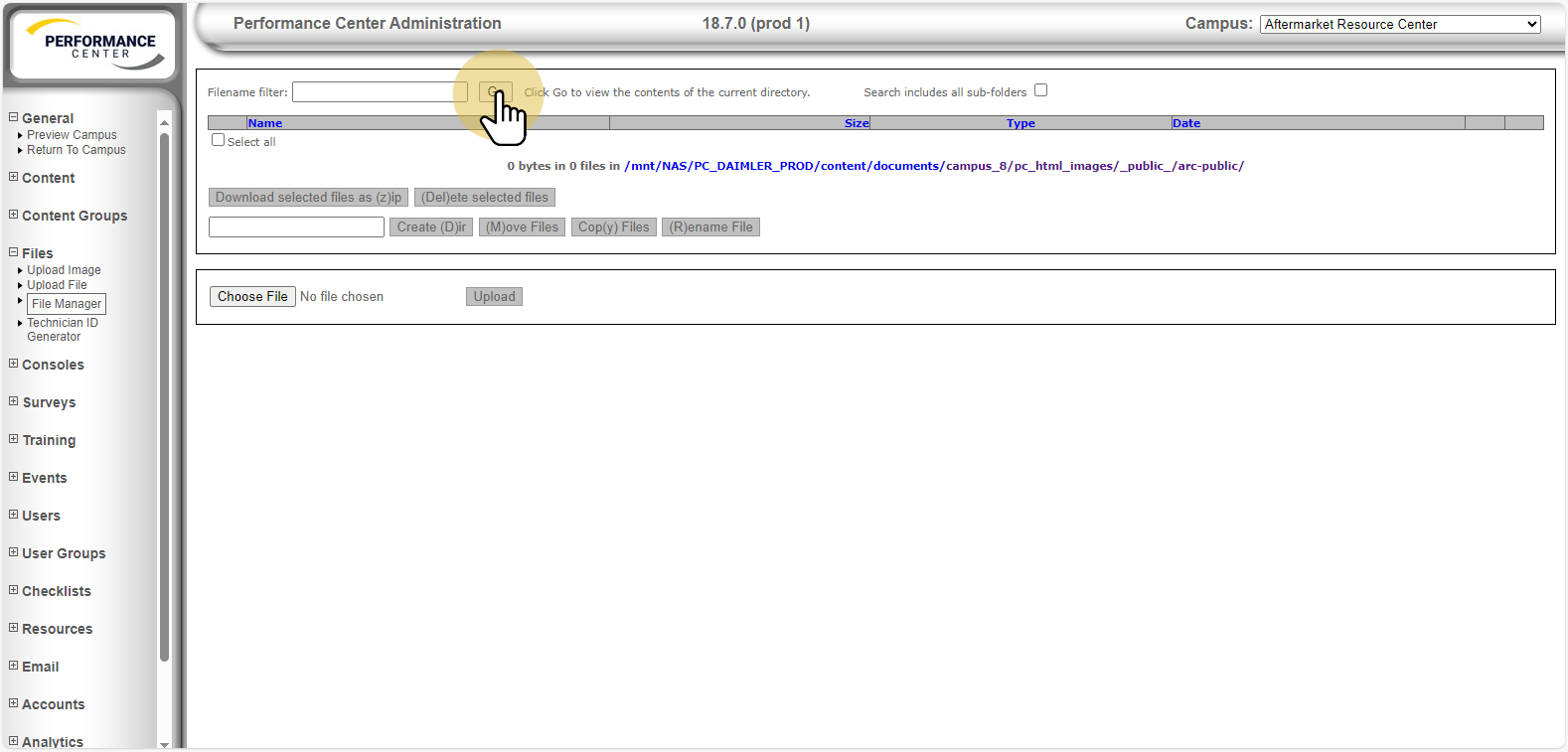
12. Click Choose File |
Notice list of current files in the "arc-public" directory. Select "Choose File".
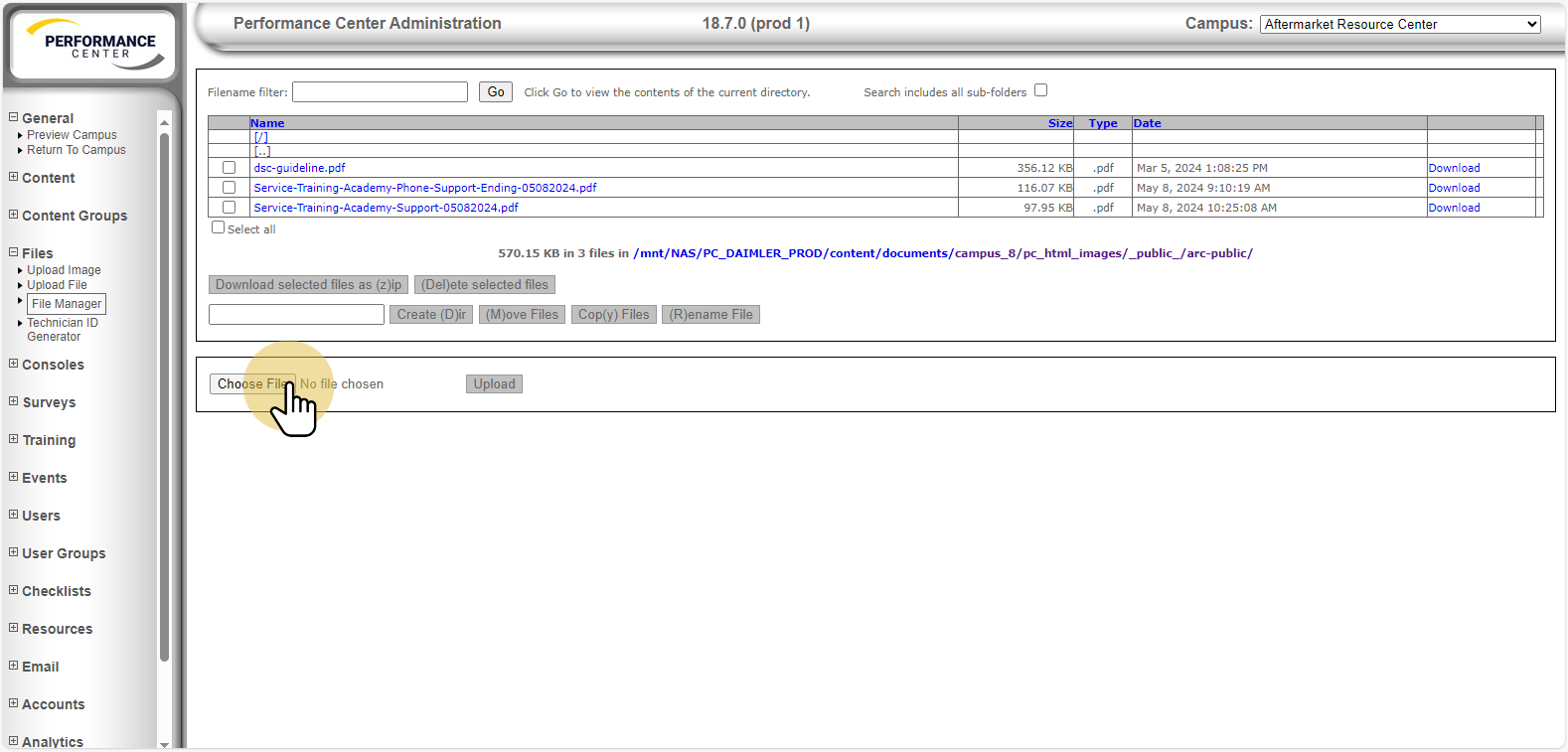
13. Select announcement file |
Use the file explorer to locate and select the announcement file.
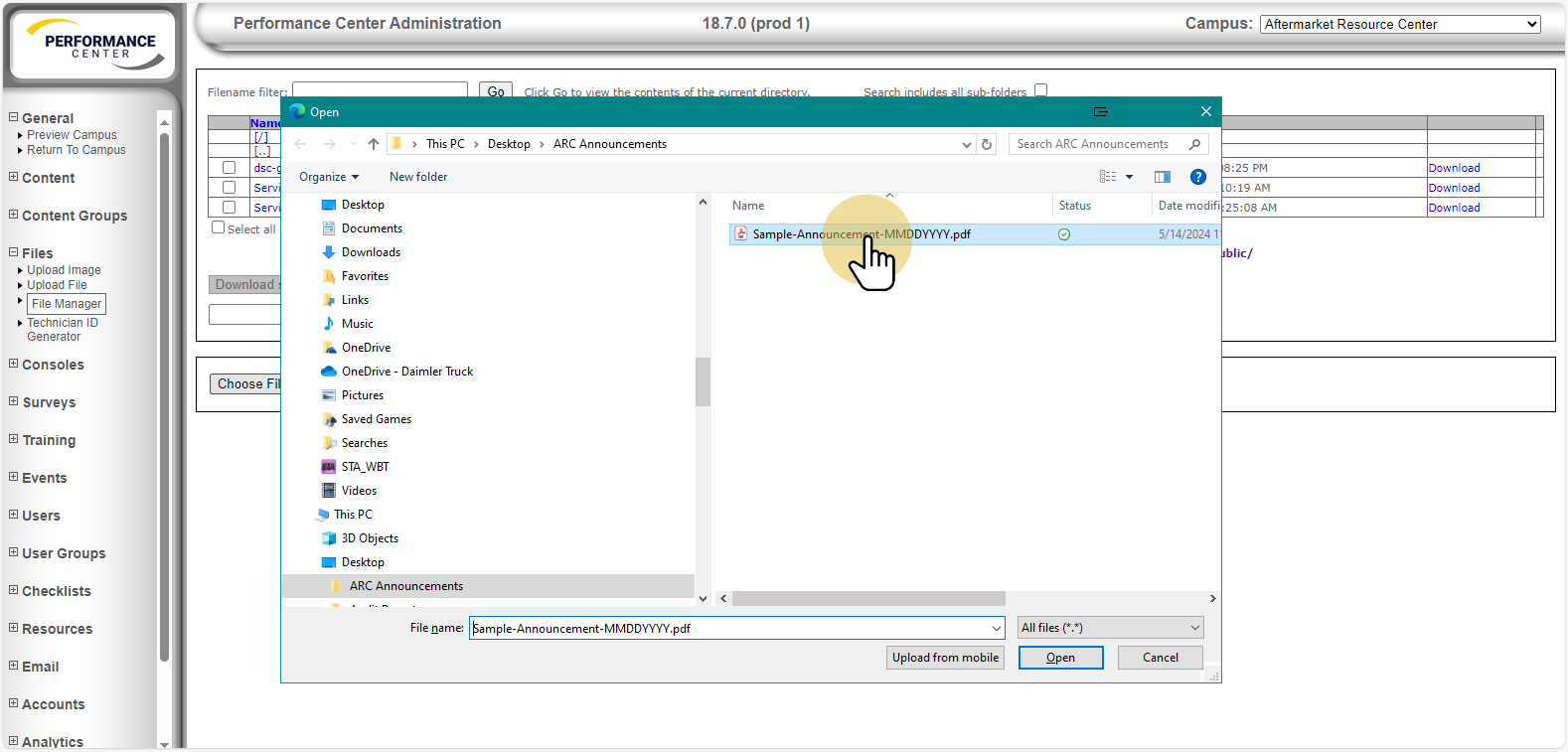
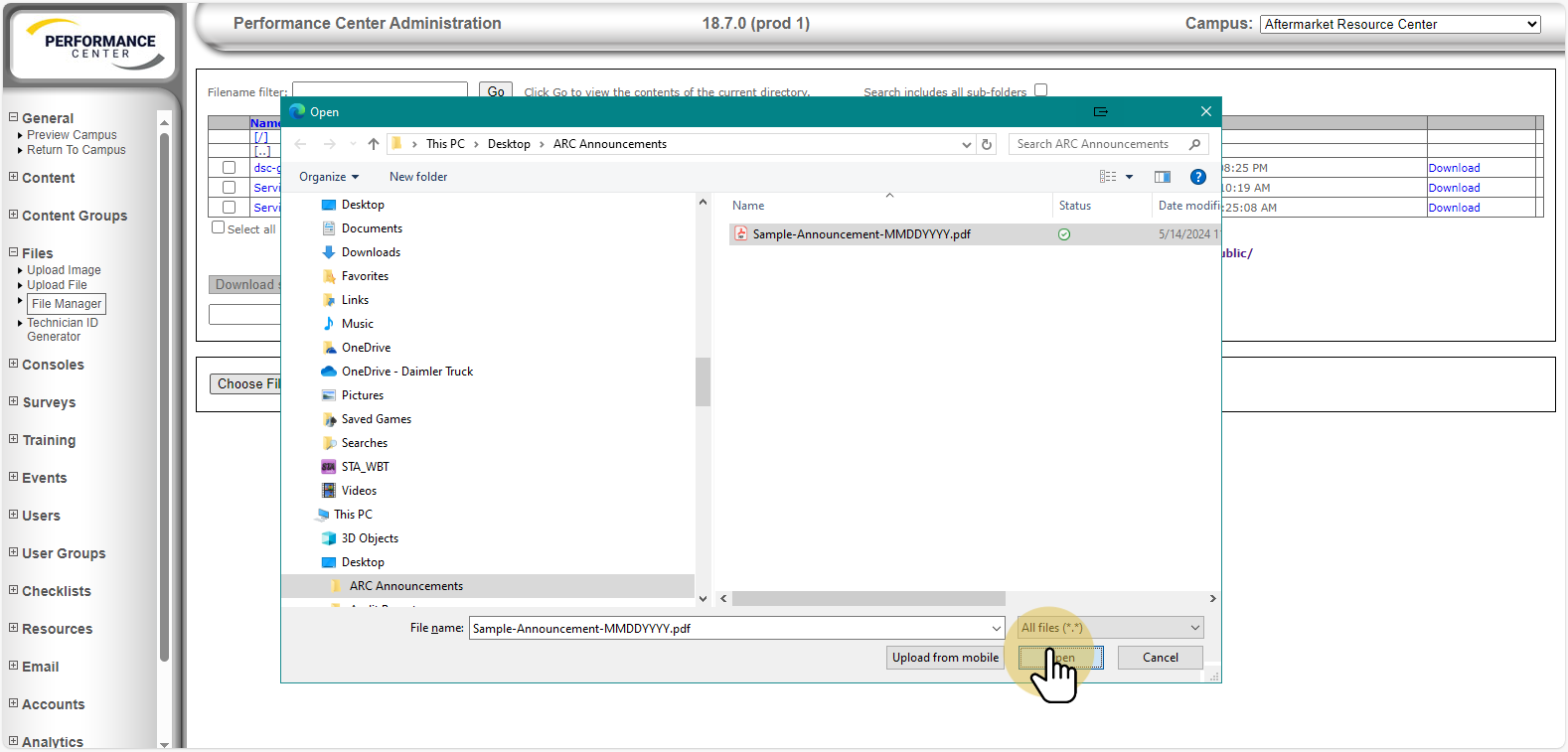
14. Click Open |
Click "Open" once file selected.
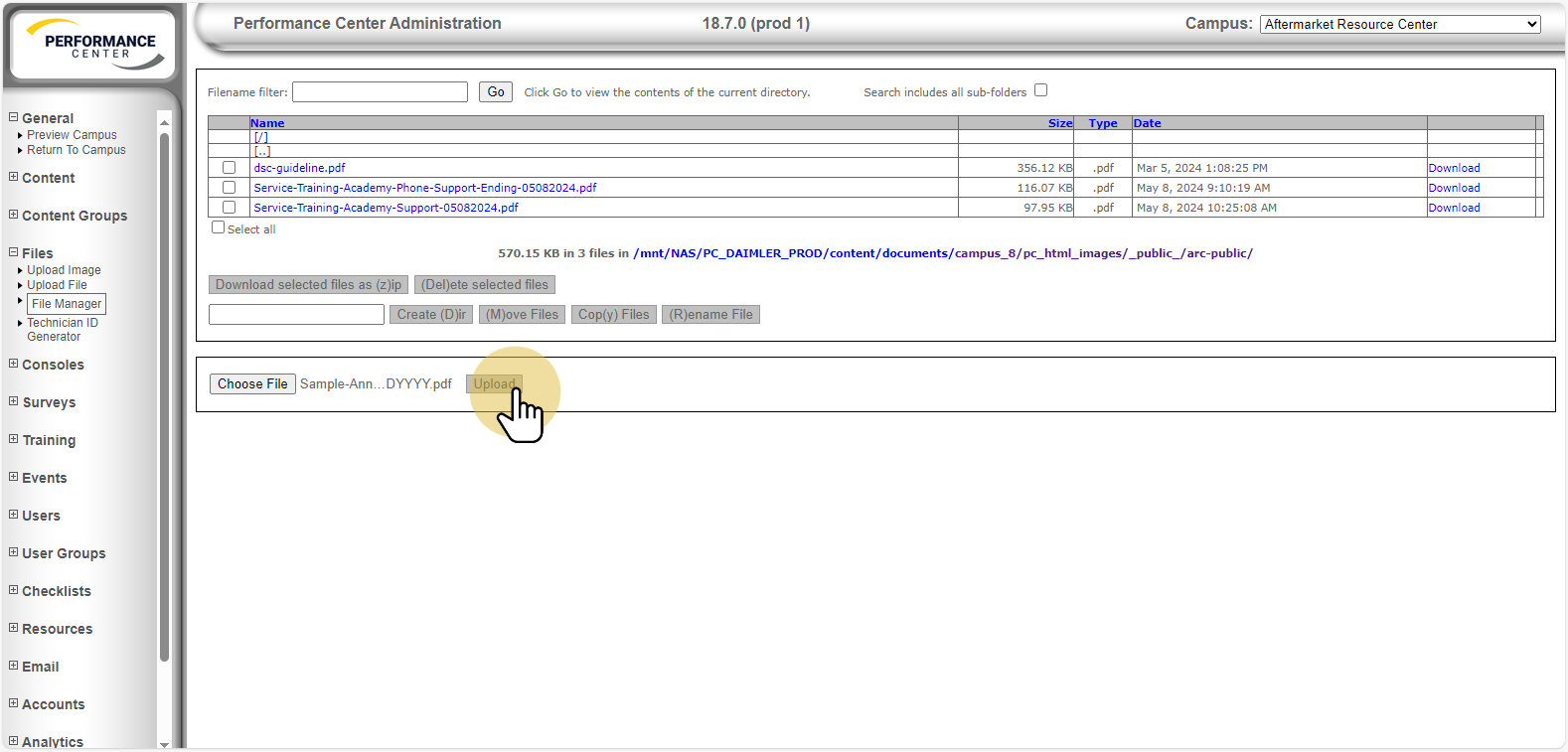
15. Click Upload |
A dialog box (not shown) displays during the upload process.
16. Click Go |
Clicking displays contents of the current directory.
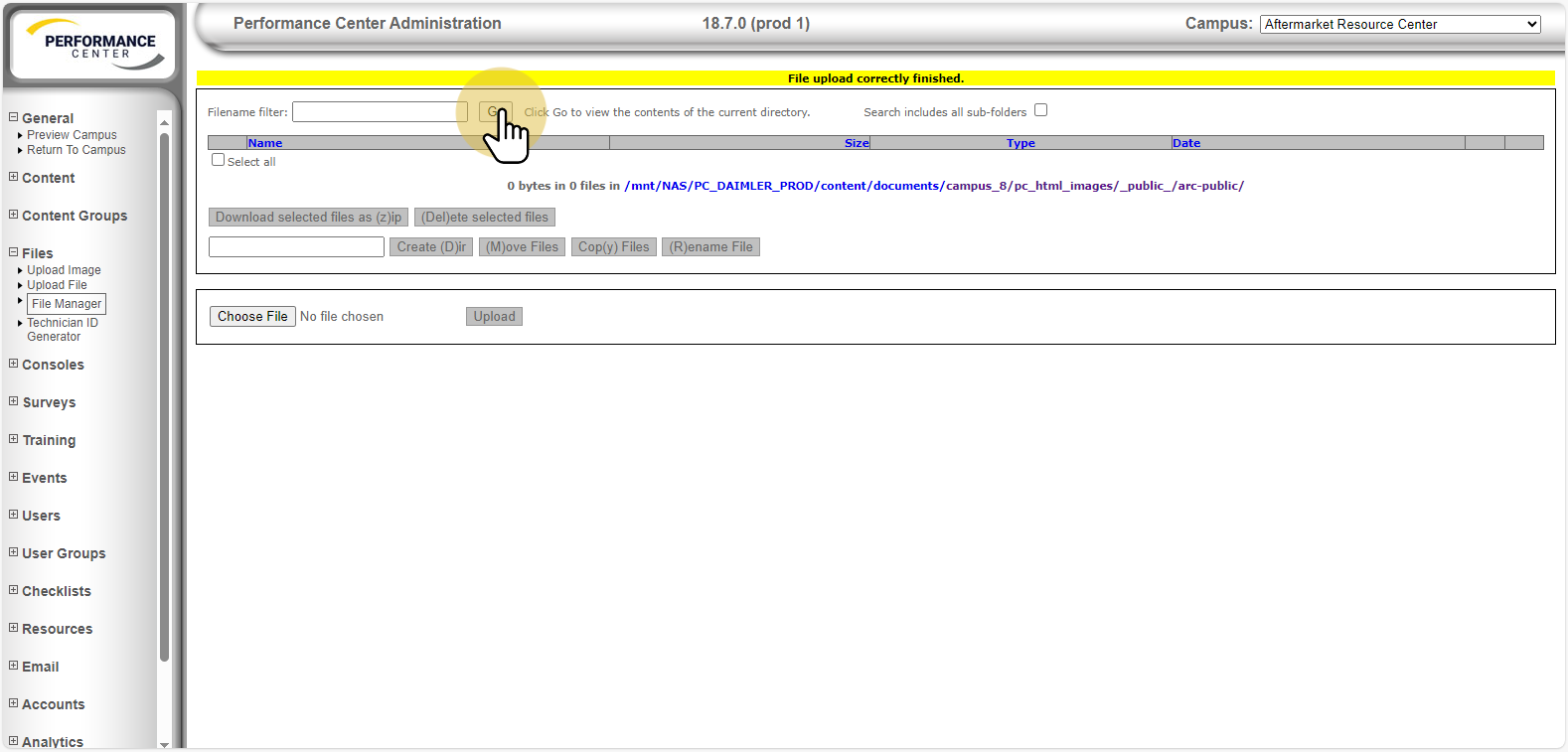
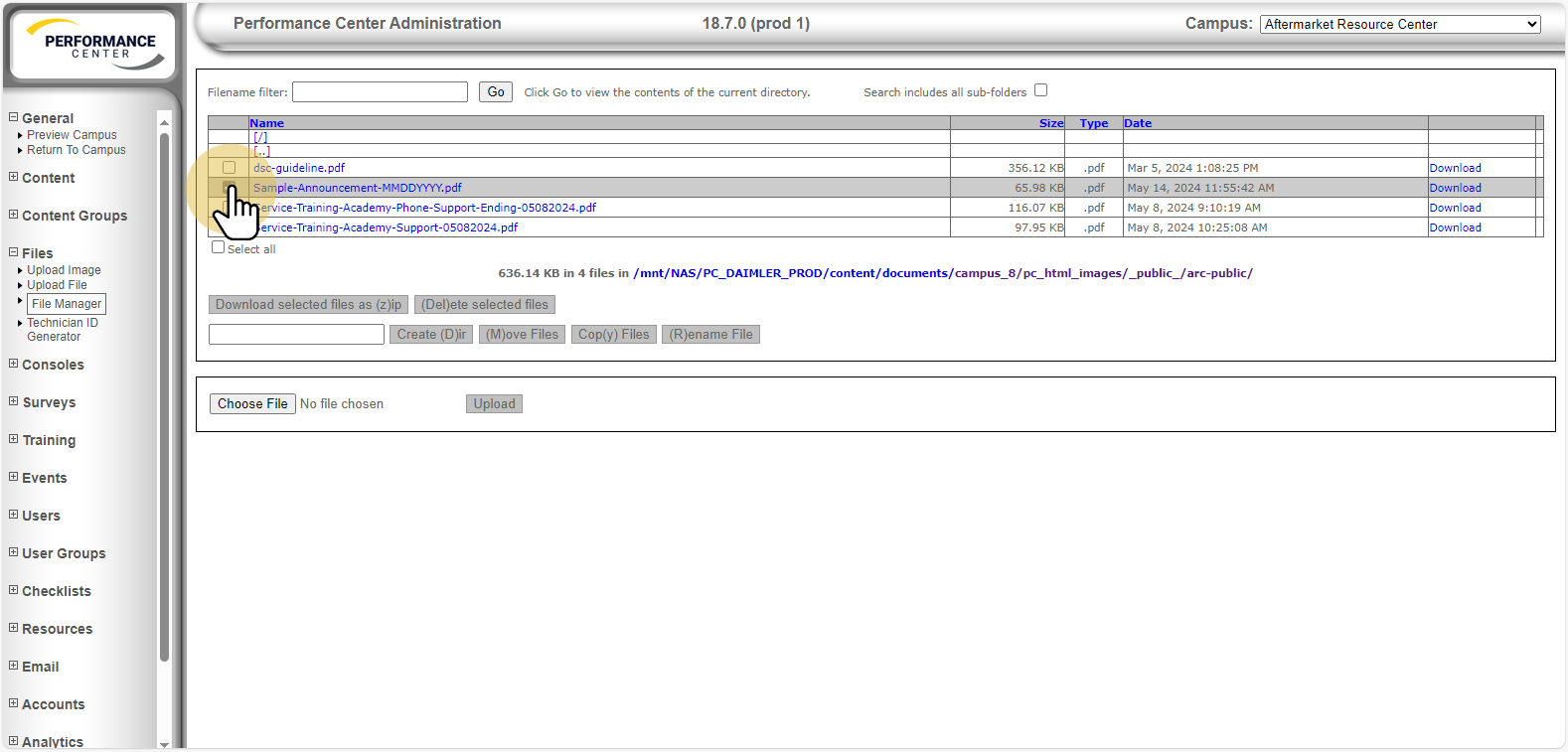
17. Upload process complete |
The file chosen to upload is now displayed.
Was this article helpful?
That’s Great!
Thank you for your feedback
Sorry! We couldn't be helpful
Thank you for your feedback
Feedback sent
We appreciate your effort and will try to fix the article